
gpu troubleshooting saga.
I went on a bit of a journey trying to fix a persistent power consumption issue with my GPU using Claude results were…mixed.
(You can jump to my duct-tape solution)
I built an Arch Linux machine earlier this year and for longer than I’d like to admit I’ve noticed my RX 7600 XT GPU fans spinning when my computer was supposed to be at an idle state. nvtop was reading 3000MHz and 115W as soon as my desktop session was locked, and my screen went to sleep. My suspicions immediately went to some sort of crypto miner. I almost wish it was, it probably would have been an easier problem to solve. Because I hate posting on forums I enlisted the help of Claude AI, who kind of helped?
A little background on myself, I often feel like kind of an idiot when it comes to this stuff, and am somewhere in the middle of not knowing what I’m doing but also knowing more than I realize. Which is probably why I dislike asking for help on forums. So just keep that in mind for the rest of this troubleshooting saga. I know discussions around AI are contentious. It’s simply a tool I find interesting and helpful. I’m not a developer so the fact I can ask it to make a script or iterate on a custom web app is absolutely bonkers. I’m sorry.
Back to the main issue. When locking my KDE Plasma Arch desktop after the screen would go to sleep, the GPU fans would spin up my immediate thoughts went to a crypto miner. I started to make sure I closed all my apps, browser windows and tabs since those are the typical culprits, and still it kept happening. I went through my packages, and updated everything. I have Immich in docker running on here, but it didn’t seem to be using my GPU. I was stumped.
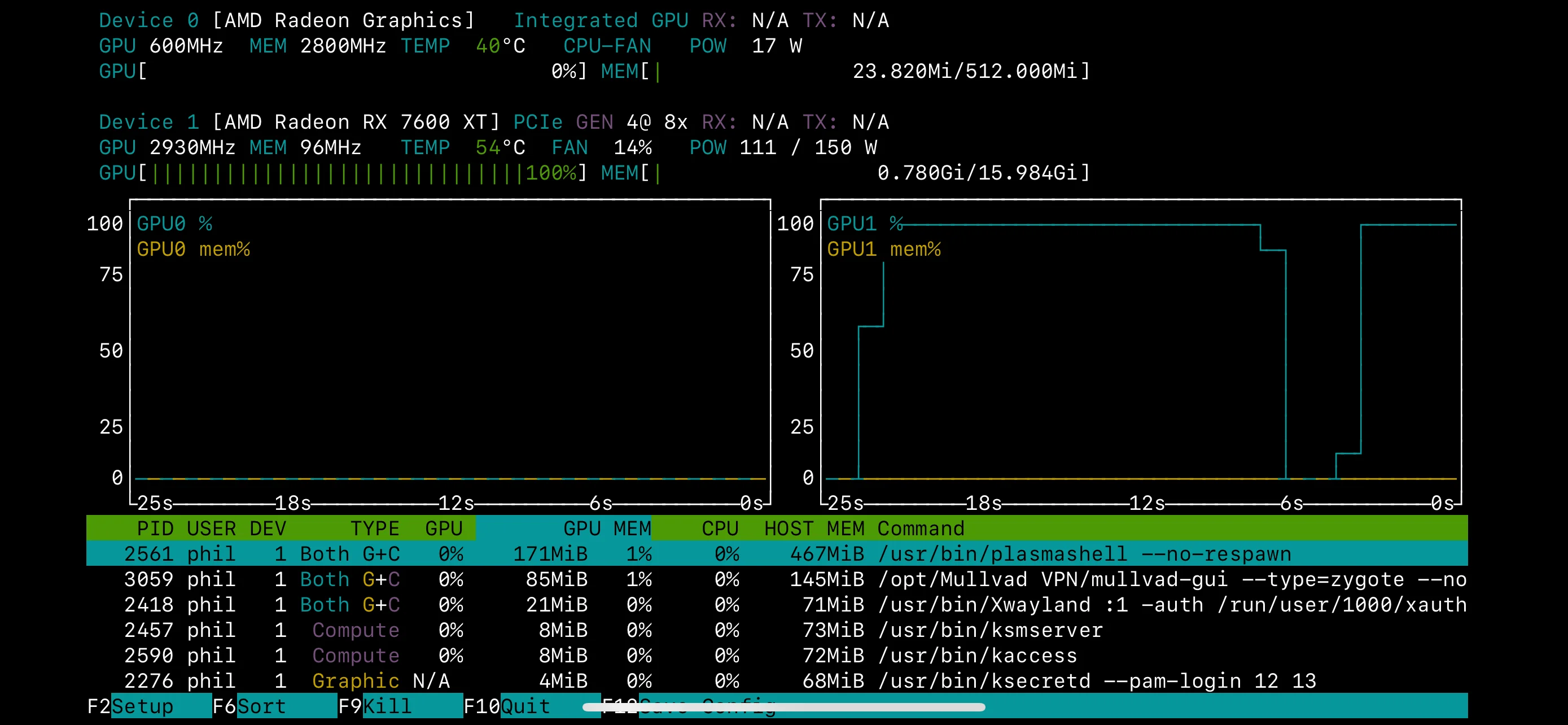
I almost couldn’t do anything else my hyper fixation on solving this problem was so compelling. I finally enlisted Claude. While I always keep my reference books and man pages handy, giving an LLM like Claude an obscure error message alongside my exact specs can provide some interesting insights and teach me things I didn’t know. I understand how LLMs work and am aware of their pitfalls. I encountered many issues with Claude during this troubleshooting, but its help was still a large reason I was able to rig a solution to my problem. Though I should have gathered the info it gave me at the time and posted in an actual forum.

The biggest issue I encountered was it kept having these confident ‘AHA!’ moments where it caught some error or circumstance and thought it solved the problem, but of course didn’t. It had some really interesting troubleshooting steps and I learned a lot. It took me through crypto-miner suspicions and used rkhunter to look for any known rootkits which was a neat tool it showed me, though this avenue was eventually ruled out since there were no hidden services, no phoning home, etc. I ran into some other red herrings and hallucinations by Claude that I guess could also be blamed on poorly written, frustrated prompts by yours truly, but eventually we both came to a solution together.
I still don’t know what exactly the bug was, it seems it was a number of things and I am not adept enough to figure it out myself. Hence my use of AI. It seems that there is an issue with the way either Wayland or KDE Plasma and its kscreenlocker and powerdevil interact with my GPU or perhaps my dual mis-matched monitor setup sending conflicting sleep signals my GPU didn’t know how to interpret causing some sort of loop. Whatever it was caused the GPU to max out usage at nearly 3000 MHz and 115W whenever the desktop was in a locked, idle state and the screen in power saving mode. It didn’t make sense to me, and the way it would ramp up and ramp down as soon as I touched peripherals is what made me suspect foul play at first. In a machine as custom built as this one, both in hardware assembly and OS installation, I couldn’t stand for a compromised machine, and a bug would just be plain irritating.
But this is what we like about Linux isn’t it? If the computer doesn’t do something the way we want or expect, we can typically alter some config files, run some commands, create a script, a systemd timer and make it. This problem proved a bit trickier to solve, until I started thinking differently. After disabling widgets, toggling settings in .config/kwinrc, changing backgrounds, blur effects, etc. It seemed nothing I was doing was doing anything to fix the underlying problem. I was looking at it the wrong way, I might not fix the problem, but I could find a solution. While Claude proved rather useful in crafting quick scripts to gather logs and then even parsing them for anything related to what I might have been encountering at an impressive speed, I was still getting nowhere with its confidently incorrect fixes.
At one point I ran a diagnostic script and parsing by Claude discovered a potential KWin issue, a reported ‘segfault’ in slotDesktopRemoved which I would have had no idea would have been related, or if it actually is. So when going down this path I discovered that my KWin fixes seemed to crash powerdevil, and restarting it would then somehow revert KWin changes, it was an indescribable mess. Unfortunately I’m not the best person to report on it either. Eventually I started editing grub config files and at this point I knew I was going off the rails following this chatbots suggestions. It wasn’t easy to find resources for something this specific and when you’re as deep as I am into an issue that feels as convoluted as this and now dead-set on fixing it, it’s easy for me to get caught up in dead ends like these. I had to think a bit differently. All the tools were right in front of me, I just needed to put them together.
At one point during troubleshooting I noticed while monitoring resource usage that running the GPU log fetch/diagnostic script caused the GPU to immediately return to the expected and desired low power state one expects when their computer is at idle with little processes running, and upon reporting this to Claude it immediately whipped up a systemd service for me to enable what it posited was the act of reading GPU sysfiles, and created a systemd timer to use it to trigger a normal power state on a regular interval. This wasn’t how I wanted to solve the problem though, it just assumed as such. I wanted to know why the script “solved” the problem, but I couldn’t figure out which command was fixing it and why. And this “solution” didn’t even help. It was my final dead end.
Then I remembered, at one point using
cat /sys/class/drm/card1/device/power_dpm_force_performance_leveland retrieving the file contents, a single word parameter: ‘auto’ to give system information to Claude for debugging. Once I realized this was a user-tunable parameter, I quickly got Claude scripting for a different systemd service this time, giving it a direct task, something it was actually meant for.
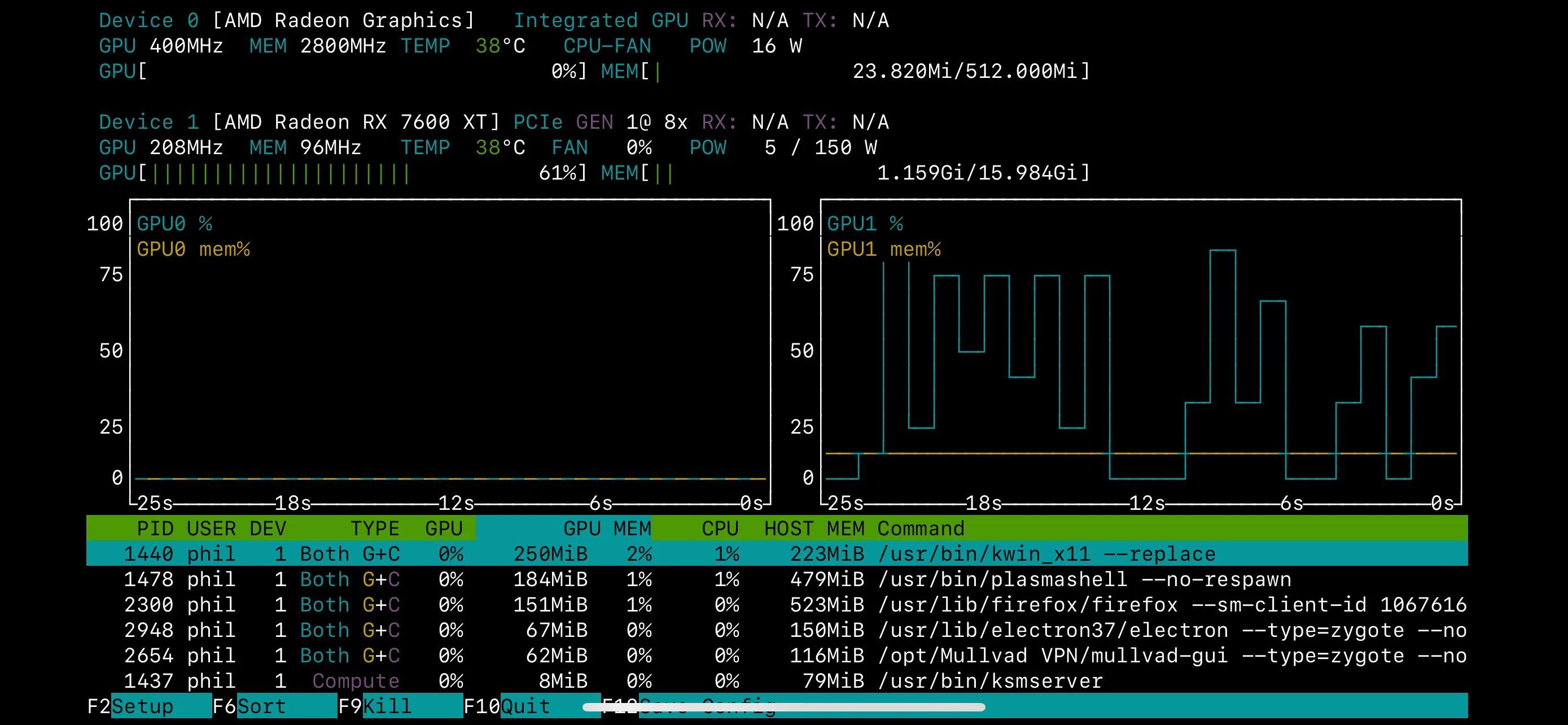
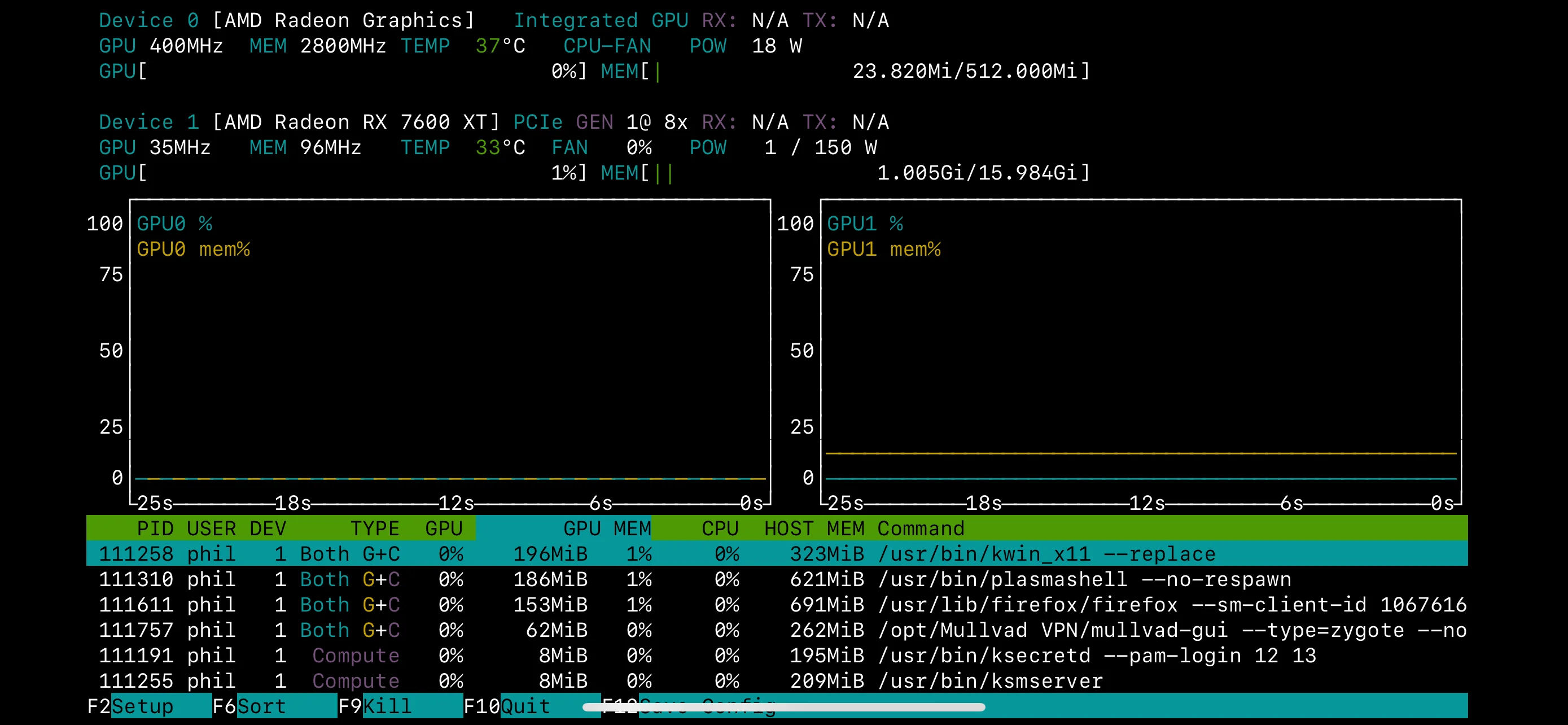
By using the tools available within the Linux operating system I was able to create a systemd service that watches for a locked desktop state and then throttles the performance level of the GPU accordingly. You can read below for the precise steps to my digital duct-tape solution. It feels bit hacked together, but the tools are all there for situations like this, right? Everything in Linux is a file that can be manipulated, the GPU tunables were accessible. All the user needs to do is write a few bash scripts, create a systemd service to tune the tunables and watch the desktop for a locked state. It’s all right there to customize and use. And the solution works! My GPU power draw at idle now sits below 10W and <400MHz. Definitely an improvement. Even if it is admittedly clobbered together, it feels like this kind of work around is exactly what Linux and FOSS is all about. Total control and freedom to do as you please with your hardware and software.
I did eventually test out X11 (which I don’t know why I didn’t earlier, I knew it was likely a Wayland issue) the issue seemed to go away entirely, but opening electron apps causes one of my displays to crash, so I’ll keep using my solution.
Thanks for tuning in!
2025-12-24 update - discovered other users with same issue
- https://bbs.archlinux.org/viewtopic.php?id=298440
- https://discuss.kde.org/t/gpu-100-usage-when-screen-turns-off-dpms-on-rdna3-rx-7600-xt/42038
Solution
Create a systemd service that automatically throttles the GPU (RX 7600 XT) to low performance mode when screen locks, and restores to auto mode when unlocked.
System Information
- OS: Arch Linux x86_64
- Kernel: 6.12.56-1-lts
- DE: KDE Plasma 6.5.1
- GPU (Discrete): AMD Radeon RX 7600 XT (card1 - PCI ID 1002:7480)
- GPU (Integrated): AMD Raphael iGPU (card0 - PCI ID 1002:164E)
- Date Implemented: November 2, 2025
Implementation Steps
1. Created GPU Throttle Script
File: /usr/local/bin/gpu-lock-throttle.sh
#!/bin/bash

GPU_CARD="/sys/class/drm/card1/device/power_dpm_force_performance_level"
LOG_FILE="/var/log/gpu-throttle.log"

log_message() {
    echo "$(date '+%Y-%m-%d %H:%M:%S') - $1" >> "$LOG_FILE"
}

case "$1" in
    lock)
        echo "low" > "$GPU_CARD"
        log_message "GPU throttled to low (screen locked)"
        ;;
    unlock)
        echo "auto" > "$GPU_CARD"
        log_message "GPU restored to auto (screen unlocked)"
        ;;
    *)
        echo "Usage: $0 {lock|unlock}"
        exit 1
        ;;
esac
Made executable:
sudo chmod +x /usr/local/bin/gpu-lock-throttle.sh2. Created Lock Monitor Script
File: /usr/local/bin/gpu-lock-monitor.sh
#!/bin/bash

# Monitor DBus for lock/unlock signals
dbus-monitor --session "type='signal',interface='org.freedesktop.ScreenSaver'" | while read -r line; do
    if echo "$line" | grep -q "boolean true"; then
        # Screen locked
        pkexec /usr/local/bin/gpu-lock-throttle.sh lock
    elif echo "$line" | grep -q "boolean false"; then
        # Screen unlocked
        pkexec /usr/local/bin/gpu-lock-throttle.sh unlock
    fi
done
Made executable:
sudo chmod +x /usr/local/bin/gpu-lock-monitor.sh3. Created Systemd User Service
File: ~/.config/systemd/user/gpu-throttle-on-lock.service
[Unit]
Description=Throttle GPU on screen lock
After=graphical-session.target

[Service]
Type=simple
ExecStart=/usr/local/bin/gpu-lock-monitor.sh
Restart=on-failure

[Install]
WantedBy=default.target
4. Created Polkit Rule for Password-less Execution
File: /etc/polkit-1/rules.d/50-gpu-throttle.rules (change username)
polkit.addRule(function(action, subject) {
    if (action.id == "org.freedesktop.policykit.exec" &&
        action.lookup("program") == "/usr/local/bin/gpu-lock-throttle.sh" &&
        subject.user == "your_name_here") {
        return polkit.Result.YES;
    }
});
5. Enabled and Started Service
systemctl --user enable gpu-throttle-on-lock.service
systemctl --user start gpu-throttle-on-lock.service
Verification
Check Service Status
systemctl --user status gpu-throttle-on-lock.serviceCheck Current GPU Performance Level
cat /sys/class/drm/card1/device/power_dpm_force_performance_level- Should show
lowwhen locked - Should show
autowhen unlocked
Check GPU Activity
cat /sys/class/drm/card1/device/gpu_busy_percentView Logs
sudo cat /var/log/gpu-throttle.logResults
- GPU throttles to ~15W max and few hundred MHz when locked (down from higher power/frequency)
- GPU activity may still show 100% utilization but at drastically reduced power consumption
- Successfully works around kscreenlocker/powerdevil bug
- Additional benefit: energy savings when screen is locked
Technical Details
AMD GPU Power Management Levels
- auto: Default automatic power management (normal)
- low: Lowest performance/power state
- high: Highest performance state
- manual: Manual control via other sysfs interfaces
DBus Signal Monitoring
The solution monitors the org.freedesktop.ScreenSaver interface for lock/unlock signals:
boolean true= screen lockedboolean false= screen unlocked
Maintenance
Disable Service (if needed)
systemctl --user stop gpu-throttle-on-lock.service
systemctl --user disable gpu-throttle-on-lock.service
Manually Test Throttling
# Throttle
sudo /usr/local/bin/gpu-lock-throttle.sh lock

# Restore
sudo /usr/local/bin/gpu-lock-throttle.sh unlock
If GPU Cards Change
If you reinstall, update drivers, or cards get renumbered, verify which card is which:
for card in /sys/class/drm/card?; do
    echo "=== $(basename $card) ==="
    cat $card/device/uevent 2>/dev/null | grep -E "PCI_ID|DRIVER"
done- Update
GPU_CARDpath in/usr/local/bin/gpu-lock-throttle.shif needed
References
- AMD GPU sysfs documentation:
/sys/class/drm/card*/device/power_dpm_force_performance_level - DBus ScreenSaver interface:
org.freedesktop.ScreenSaver - Systemd user services:
~/.config/systemd/user/